
If you’re new to 3D scanning and thinking about buying your first Creality scanner, you’ve probably seen flashy YouTube videos showing perfect scans in seconds. But here’s the truth most videos skip: 3D scanning is only the first step. The real work — and the biggest surprises — happens afterward in post-processing, rendering, and CAD software.
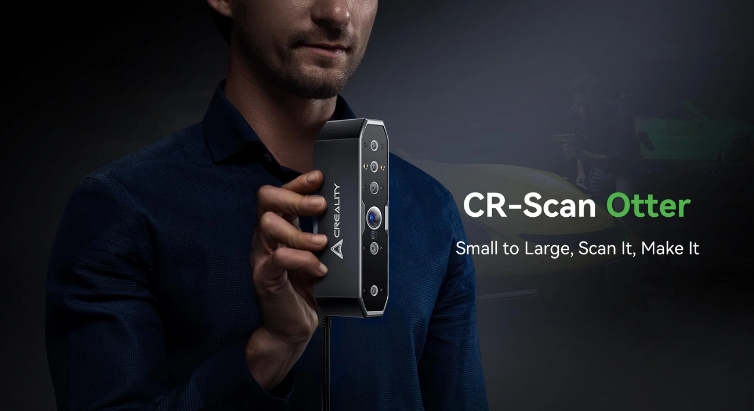
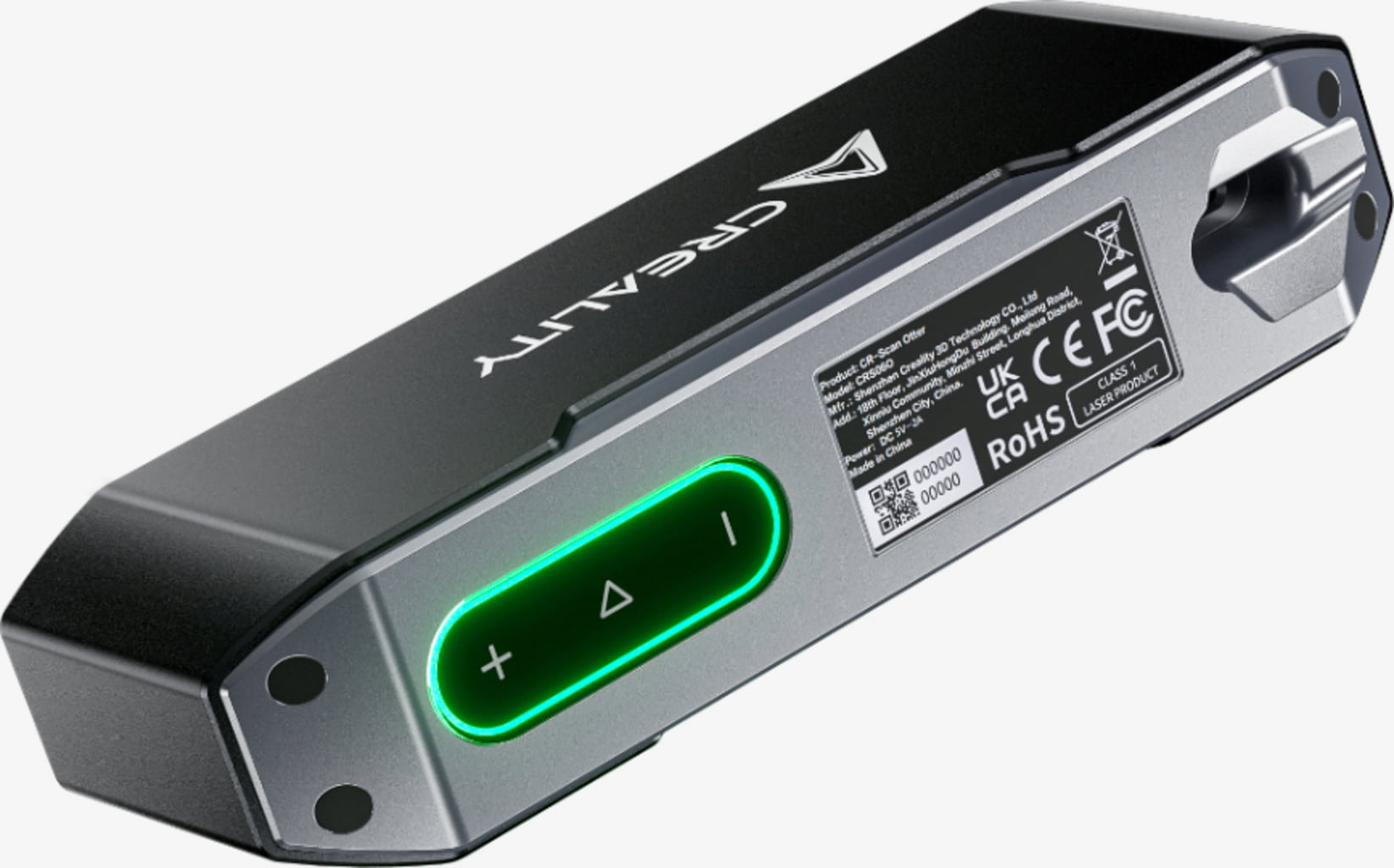
Today we’re comparing the two most popular entry-level options: the Creality CR-Scan Otter and the Creality CR-Scan Otter Lite. Both are excellent handheld NIR (infrared) 3D scanners that work great for beginners, but they have important differences that can affect your experience.
First, a Quick Note for Absolute Beginners
A 3D scanner doesn’t magically give you a finished 3D-print-ready or CAD-ready model. It captures thousands of points and photos → your computer turns that raw data into a mesh (a 3D surface) → you clean it up → then you often export it to CAD software (like Fusion 360, SolidWorks, or Blender) to turn it into a proper, editable design.
Many first-time buyers think “I’ll just scan and print.” Reality: expect 30 minutes to several hours of extra work per scan, especially with larger objects.
Side-by-Side Specs Comparison
| Feature | CR-Scan Otter (Standard) | CR-Scan Otter Lite | Winner for Beginners? |
|---|---|---|---|
| Accuracy | Up to 0.02mm @ 60mm | Up to 0.05mm @ 100mm | Otter (higher detail) |
| Minimum Scan Size | 10 × 10 × 10 mm | 20 × 20 × 20 mm | Otter (tiny objects) |
| Scanning Speed | Up to 20 fps | Up to 30 fps | Lite (faster feel) |
| Resolution | 0.05–2 mm | 0.1–2 mm | Otter |
| Object Size Range | 10 mm – 2000 mm | 20 mm – 2000 mm | Tie |
| Weight | 390 g | ~300–350 g | Lite (easier to hold) |
| Wireless Ready | Needs optional Scan Bridge | Built-in WiFi 6 | Lite |
| Scan Black/Metal | Yes (no spray needed) | Yes (no spray needed) | Tie |
| Full-Color Scanning | Yes | Yes | Tie |
| Price (approx.) | Higher | Lower | Lite |

Insane Results with the Creality CR-Scan Otter – AMSTUDIO
Real-World Differences You Won’t Always See on YouTube
YouTube videos often show ideal conditions: well-lit rooms, highly detailed objects, and short demo scans. Here are the hidden challenges real users face:
- Tracking Loss on Featureless Surfaces Smooth areas (car hoods, plain walls, shiny plastics) can cause the scanner to “lose tracking.” You’ll hear a beep and the preview freezes. Solution: stick small markers on the object. This step is rarely shown in hype videos but becomes second nature after your first big project.
- Lighting & Outdoor Scanning Both scanners handle up to 30,000 lux (bright daylight), but direct sunlight or very dark rooms can still cause noise or tracking issues. Indoor controlled light works best for beginners.
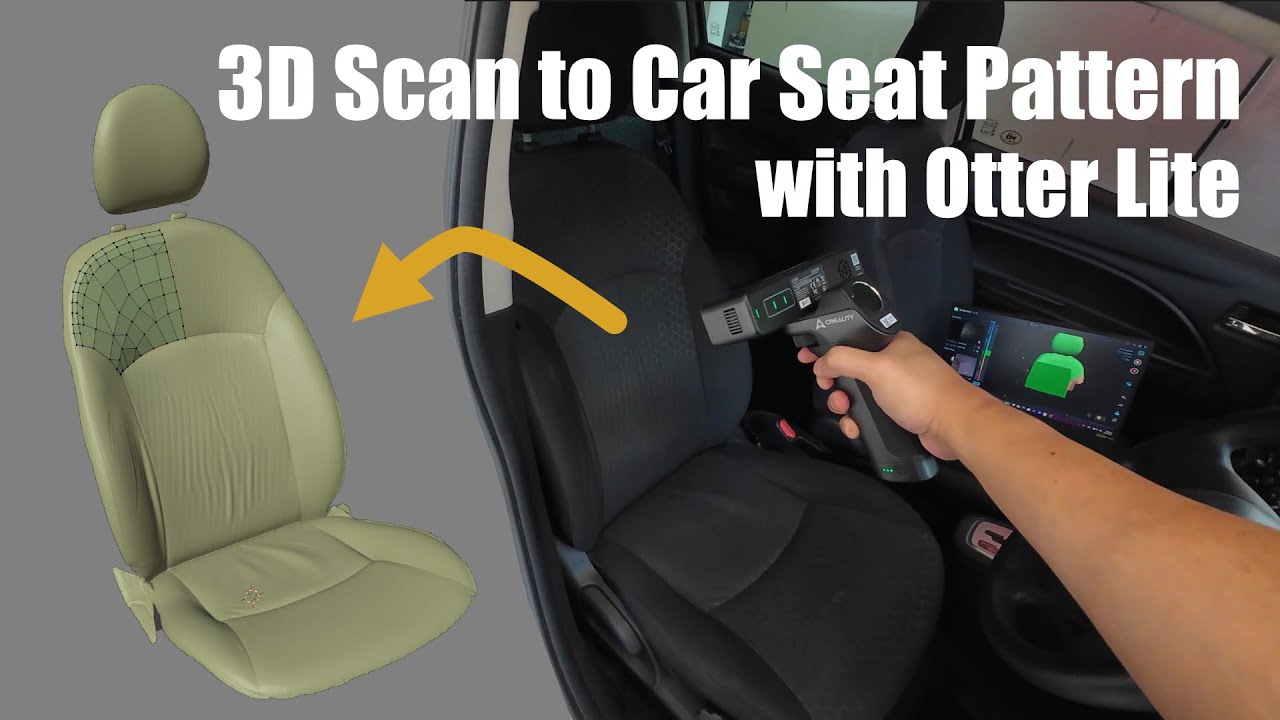
- Scan Time for Big Objects Scanning a full car seat or motorcycle part can take 20–60+ minutes of continuous walking around. Your arm gets tired — the lighter Otter Lite wins here for comfort.
- File Sizes & Processing Time A detailed car-part scan can create gigabytes of raw data. Meshing and cleaning in Creality Scan software can take 10–60 minutes (or longer on a weak PC).
The Full Workflow: Scan → Render → CAD (This Is the Part Most People Miss)
Here’s what actually happens after you finish scanning:
- Raw Scan → Import into Creality Scan software (free).
- Rendering / Meshing → The software aligns frames, removes noise, fills holes, and creates a watertight mesh. This step can crash or slow down dramatically if your PC is underpowered.
- Cleanup → Manually remove floating bits, smooth surfaces, fix holes.
- Export to CAD → Open the mesh in Fusion 360, SolidWorks, or Blender to turn it into a proper parametric model (for editing dimensions, adding features, or manufacturing).


Important reality check: The scanner gives you a 3D “picture” of the object. Turning that into a clean, usable CAD file is where the real skill (and time) comes in. Beginners often spend more time in software than actually scanning.
PC & Hardware Requirements – Don’t Skip This!
Both scanners work with the Creality Scan app on phones (especially the Lite with built-in wireless), but full processing needs a decent computer:
- Recommended: Windows 11, Intel i7 12th gen or better, NVIDIA RTX 3060 or higher, 32 GB RAM.
- Minimum: i5 + GTX 1650 + 16 GB RAM (you’ll wait longer and may hit crashes on large scans).
A weak laptop will make post-processing painful. Many beginners buy the scanner first and regret not upgrading their PC.

Which One Should You Buy?
Choose the Otter Lite if:
- You’re a complete beginner or hobbyist.
- You want lighter weight and built-in wireless scanning.
- You mostly scan medium-to-large objects (20 mm and up).
- Budget is important.
Choose the standard Otter if:
- You need the highest possible detail on tiny objects (coins, small parts, jewelry).
- You plan to do professional reverse engineering.
- You don’t mind adding the optional Scan Bridge later for wireless use.
Final Thoughts
Both the Creality CR-Scan Otter and Otter Lite are fantastic entry points into 3D scanning. The Lite makes the hobby more accessible and comfortable, while the standard Otter gives you that extra precision for finer work.
Just remember: the scanner is the fun, exciting part. The real magic (and learning curve) happens in the post-processing and CAD stage. Plan for a good computer, patience for cleanup, and maybe a few YouTube tutorials on mesh editing.
Ready to start scanning? Check out the official Creality pages for the latest pricing and bundles.
Have you tried either scanner yet? Drop your questions in the comments — happy to help fellow beginners!
Explore our complete selection of professional Handheld 3D Scanners for Sale to find the ideal metrology setup for your workshop.