
The Creality K2 series, particularly the K2 Plus model, represents a significant leap in consumer-grade 3D printing technology, offering large build volumes, high-speed printing, and advanced features like multi-color capabilities. At the heart of its multi-filament prowess is the Creality Filament System (CFS), an innovative accessory designed to streamline multi-color and multi-material printing. Launched as part of Creality’s push into more versatile 3D printing solutions, the CFS allows users to expand their creative horizons without the hassle of manual filament swaps. For new users venturing into 3D printing, understanding the CFS is crucial, as it transforms a standard printer into a powerhouse for complex, colorful projects. This article delves into everything beginners need to know about the CFS, from its core features to setup tips, compatibility, and troubleshooting to ensure smooth operation.
The CFS is essentially a smart filament management unit that holds up to four spools of filament, enabling automatic switching during prints. When paired with the K2 Plus, which boasts a generous 350 x 350 x 350 mm build volume, it supports up to 16 colors by connecting multiple CFS units (up to four). This system is compatible with the Creality Hi and K2 series printers, making it a modular add-on for users looking to upgrade their setup. Priced affordably, often bundled in combos like the K2 Plus Combo, the CFS weighs about 4.56 kg and measures 379 x 314 x 276 mm, fitting neatly beside or atop your printer.
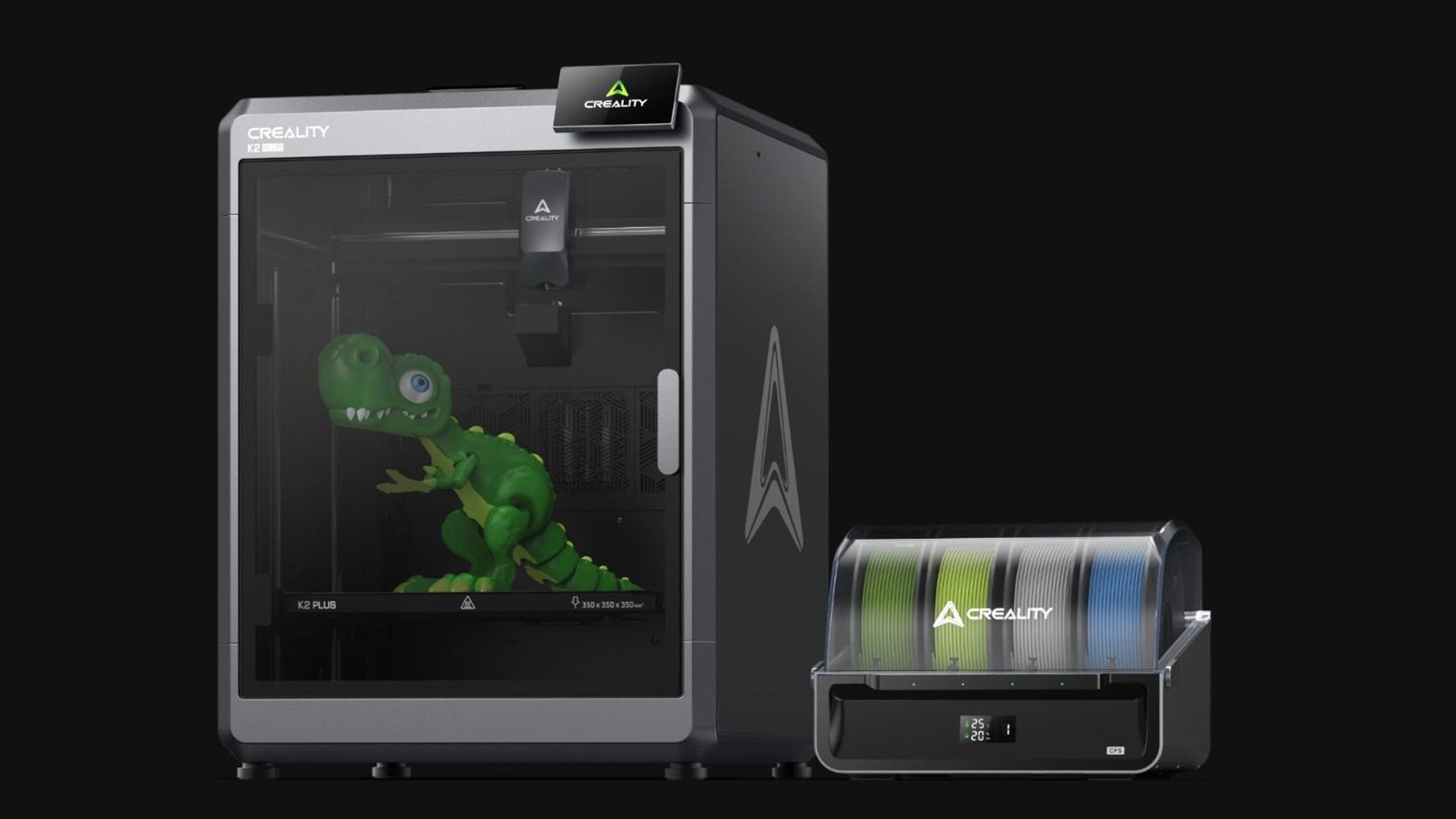
Creality Announces Multi-Filament System & K2 Plus 3D Printer | All3DP
One of the standout features for new users is the automatic filament loading and unloading. The CFS uses RFID technology to detect filament types and colors automatically if you’re using Creality’s tagged spools, syncing this data directly to the printer’s software. For non-RFID filaments, you can manually input details via the printer’s interface or Creality Print software. This automation minimizes errors and saves time, especially during long prints. Additionally, the system includes filament run-out and tangle detection, which pauses the print and alerts you via the printer’s screen or app if issues arise. The auto-relay function seamlessly switches to another spool of the same material if one runs out, ensuring uninterrupted printing.
Moisture-proof storage is another key aspect, vital for maintaining filament quality. The CFS features an airtight design with built-in desiccants to keep humidity low, along with real-time temperature and humidity monitoring displayed on its front panel. High humidity can lead to brittle prints or clogs, so this feature is a game-changer for beginners in humid environments. The system also includes a filament buffer to prevent “jumping” or uneven feeding, which is common in multi-filament setups.
For setup, new users should start by unboxing the CFS and ensuring all components are present: the main unit, power adapter (rated at 20W, DC 24V), connection cables, and desiccants. Place the CFS near your K2 Plus printer for easy cable routing. Connect the power supply and use the provided cables to link it to the printer—typically via a dedicated port on the K2 Plus. If using multiple CFS units, daisy-chain them using the communication ports. Load filaments by opening the transparent cover, inserting 1kg spools (diameter 197-202 mm, width 42-68 mm) into the four slots, and threading the filament through the guides into the feeding mechanism. The system will detect and load them automatically. Always use dry filaments to avoid jams; if your spools are damp, dry them in an oven or dedicated dryer first.

CFS Automated Filament System
Compatibility is straightforward but important for beginners to note. The CFS works best with rigid filaments like PLA, ABS, PETG, ASA, PET, PA-CF, and PLA-CF, all with a 1.75 ± 0.05 mm diameter. Avoid flexible materials like TPU95A, as they can cause feeding issues, or water-soluble supports like damp BVOH/PVA, which may warp or clog the system. Cardboard spools, such as Creality’s Hyper series, are supported without adapters, but ensure they’re not warped. For optimal performance, stick to 1kg spools to match the slot design.
Now, let’s address tips to ensure all lights are green—or in CFS terms, all status indicators show normal operation. The CFS has four status lights, one per slot, typically white for good states and red for errors. However, the communication module includes a green light for CAN T connection, blue for RS-485, and white for CAN RS, while the display shows green icons for ideal temperature (around 25°C) and relative humidity (below 20% RH). To achieve “all lights green” (indicating no errors and optimal conditions):
- Power and Connection Check: Ensure the CFS is properly powered and connected. If the four white lights blink in sequence, it means the system is connected but no filaments are loaded—load them to shift to steady white (idle) or breathing white (printing).
- Filament Insertion: Insert filaments correctly; a steady red light means no filament detected despite the hub sensing a spool. Breathing red indicates filament exhaustion during print—replace promptly.
- Humidity Management: Monitor the display; green icons mean low humidity. Replace desiccants if alerts pop up for high moisture.
- Clear Jams: If red lights blink sequentially, check for connection abnormalities or stuck filament. Remove spools, inspect feeders for debris (like bright green filament remnants from previous prints), and clean.
- Software Sync: Update Creality Print to the latest version (e.g., 6.0 or higher) and calibrate the printer. If errors persist, disconnect and reconnect cables, or reset the CFS by powering off/on.
- Avoid Overloading: Don’t force incompatible spools; this can trigger red lights or pauses.
Following these tips, your CFS should run smoothly, with all indicators confirming readiness—no reds, stable whites during operation, and green on the display for environmental conditions.
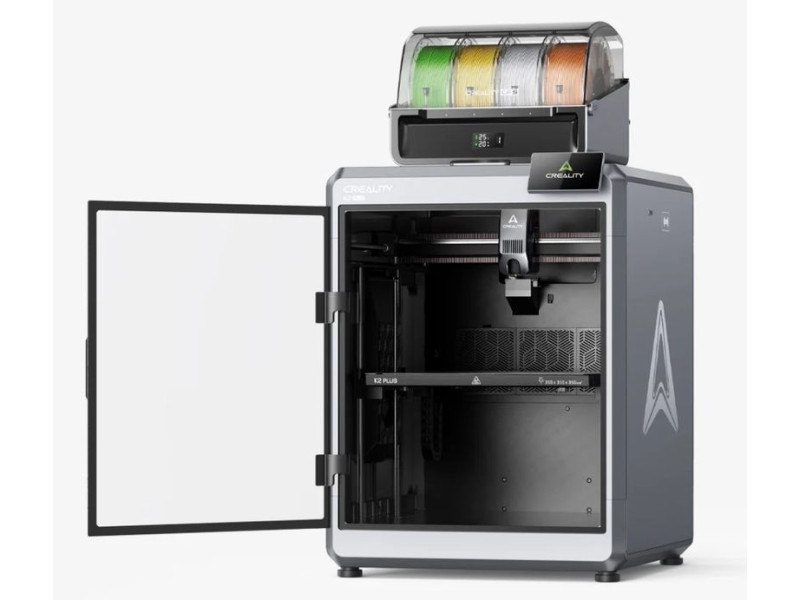
Creality K2 Plus Combo 3D Printer: Buy or Lease at Top3DShop
For new users, the CFS opens up exciting possibilities, like printing snap-away supports in different materials for easy removal or creating vibrant models without post-processing. Imagine producing a multi-color dinosaur figure or functional prototypes with varied properties—all automated. While early adopters noted bugs like filament retraction issues, firmware updates have addressed most, making it reliable by 2026 standards.
In conclusion, the CFS elevates the K2 series from a solid printer to a multi-material marvel. With its user-friendly features, beginners can dive in confidently, but always prioritize dry, compatible filaments and regular maintenance. At over 800 words, this guide equips you to get started—happy printing!
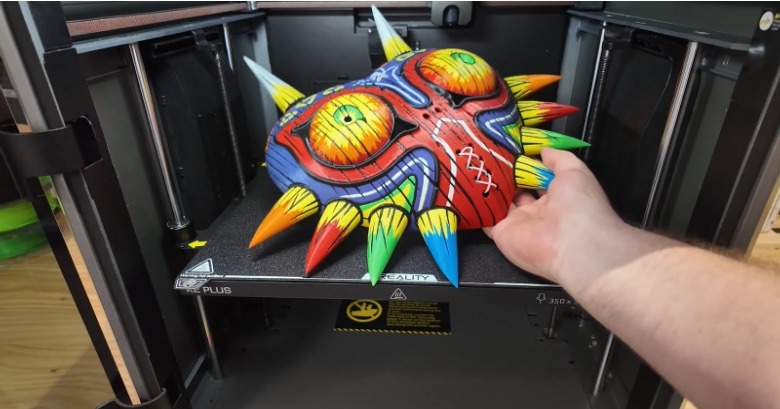
How to 3D Print Large Objects